The marketplace allows you to buy or download a module. This service is made for that.
By your contribution, you help the community to continue to help you on the forum and the ClicShopping Development.
You also have lot of free modules than you can download by your admin or you can install in manual.
Some modules are on Github.
For the Buyers, you have 3 choices :
- Buy a module with renewal terms (note : it's not mandatory to renew the terms but you will lost your advantage price and update)
- Buy and download a module
- Download Free modules
For sellers :
- Just download your module. The app will be reviewed by a moderator
- After verification, you will have full access at your module on the marketplace to update it.
- All updates must contains all the files else the app will be not accepted
More informations:
Trademark License info : https://www.clicshopping.org/forum/trademark/
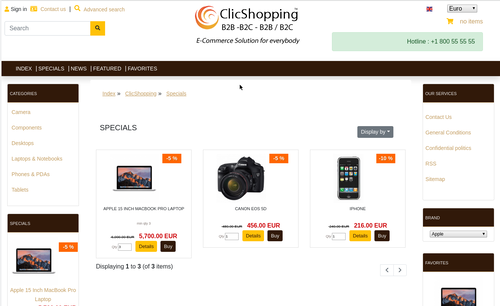
modules_products_special
- Only the creator of this module is responsible.
- For any problem please contact the person in charge of this module
- No advertisement is allowed inside the apps excepts specific partnership
Files
-
German Language
Free
New german language for ClicShopping This module contains The german language for admin and catalog Via the installation system administration ClicShopping or manual Technical Prerequisites: None License : GPL 2 - MIT Modules: - Compatibility: >= version 3.0 - Recommendation and documentation specific use : - If you have rename your ClicShoppingAdmin directory by another, it's better to make a manual installation Implementation: I- 75 Downloads
- 2 Comments
-
Apps Payment Paypal
Free
This apps allow you to add Paypal Express hosting Payment in your website. Some informations has been included inside the app across help page. Allow the customer to connect paypal via the shopping cart You must have an account on Paypal. Important Note : To use this app you have paypal apps installed. Copy the apps_payment_paypal.json into ClicShopping/Work/Cache/Github licence : GPL 2 - MIT All informations about the ClicShopp- 15 Downloads
- 0 Comments
-
Template Chocolat
Free
New design theme and based on chocolat theme. If you have included new modules, you must update in consequence your files and css You must just copy the files that you want change inside the template chocolat directory. This module contains - The language files in English and French - The css file in French and English - The module Via the installation system administration ClicShopping Technical Prerequisites: None License : GPL 2 - MIT French/ English- 15 Downloads
- 0 Comments
-
Apps Tools Transfert Language
Free
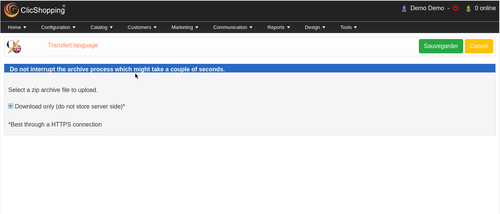
This apps will allow you to backup your language file and re-import inside ClicShopping licence : GPL 2 - MIT English & French Important Note : Install : Copy the apps_tools_transfert_language.json into ClicShopping/Work/Cache/Github (manual installation) http://monsite/myAdmin/index.php?A&Tools\TransfertLanguage Activate the module in Tools Github Apps link : https://github.com/ClicShoppingOfficialModulesV3/apps_tools_transfert_- 22 Downloads
- 0 Comments
-
Grocery template
Free
New design theme and based on Grocery theme. If you have included new modules, you must update in consequence your files. You must just copy the files that you want change inside the Grocery theme. This module contains The language files in English and French The css file in French and English The modules Via the installation system administration ClicShopping Technical Prerequisites: None License : GPL 2 - MIT compatibility:- 134 Downloads
- 3 Comments
-
apps catalog import export
Free
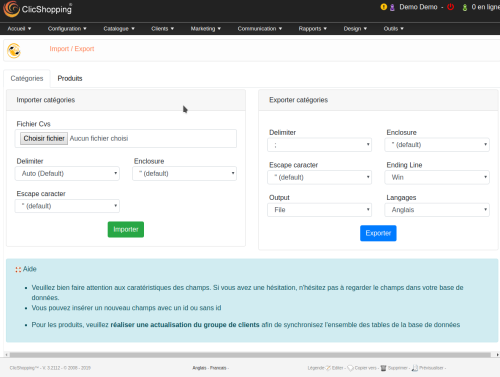
This apps allow you to import or export your categories and products in csv format. It's useful is you need to change or manage yours categories or products via excel files. A hooks is included and allow you to implement new importation or exportation (suppliers, manufacturers, attributes ...) - Update, insert products - Quick update (model, stock, ean) Licence : GPL 2 - MIT Language : English and French Important Note : You must under- 105 Downloads
- 1 Comments
-
Apps Marketing Price Scrapping
40.00 EUR
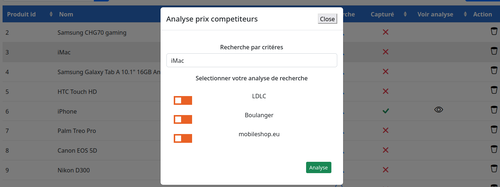
This apps will allow you to analyze products price on another website for a similar product. The price is directly displayed inside the product information and inside the Price Scrapping module. This module include a prediction price using by Machine learning on 1000 iterations. Complete documentation is included inside the app you can add several websites to analyze You must understand the HTML to use this solution, This module contains - The language fi- 0 Purchases
- 14 Downloads
- 0 Comments
-
Apps Recover Cart
45.00 EUR
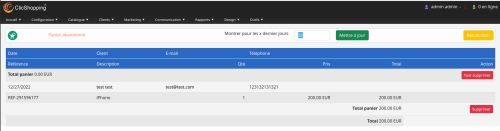
This apps will allow you know the products abandoned by your customer in the shopping cart and to contact them Important Note : The installation is manual and must be downloaded on the marketplace. Copy the RecoverCart directory into Includes/Apps/Marketing/ directories Copy sources in sources directory Copy the apps_recover_cart.json into ClicShopping/Work/Cache/Github Install : http://monsite/myAdmin/index.php?A&Marketing\RecovertCart- 0 Purchases
- 8 Downloads
- 0 Comments
-
Apps catalog wharehouse
20.00 EUR
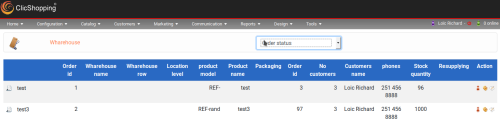
This apps will allow you to create a wharehouse and to include some information. A report is including inside. Important Note : Copy the apps_report_stats_wharehouse.json into ClicShopping/Work/Cache/Github licence : GPL 2 - MIT Install : http://mywebsite/myAdmin/index.php?A&Catalog\ProductsWarehouse Activate the apps- 0 Purchases
- 4 Downloads
- 0 Comments
-
Template Cool Effect
Free
New design theme and based on an effect on the product If you have included new modules, you must update in consequence your files and css You must just copy the files that you want change inside the template cool_effect directory. This module contains - The css - The modules Via the installation system administration ClicShopping Technical Prerequisites: None License : GPL 2 - MIT Modules: - Compatibility: >= version 3.0 - Multi la- 52 Downloads
- 0 Comments
-
Yellow Shadow
Free
New design theme and based on yellow shadow theme. If you have included new modules, you must update in consequence your files. You must just copy the files that you want change inside the yellow shadow theme. This module contains The language files in English and French The css file in French and English The modules Via the installation system administration ClicShopping Technical Prerequisites: None License : GPL 2 - MIT co- 11 Downloads
- 0 Comments
-
Template Christmas
Free
New design theme and based on an Christmas color on the product If you have included new modules, you must update in consequence your files and css You must just copy the files that you want change inside the template cool_effect directory. This module contains - The css - The modules Via the installation system administration ClicShopping Technical Prerequisites: None License : GPL 2 - MIT Modules: - Compatibility: >= version 3.0 -- 62 Downloads
- 0 Comments
-
Template Design Alibaba
Free
New design theme and based on Alibaba theme. If you have included new modules, you must update in consequence your files. You must just copy the files that you want change inside the Alibaba theme. This module contains The language files in English and French The css file in French and English The modules Via the installation system administration ClicShopping Technical Prerequisites: None License : GPL 2 - MIT compatibility:- 106 Downloads
- 0 Comments
-
Apps payment square
Free
The Square payment plugin module will allow you to connect your Square account to your online store. The payment gateway is operated by Square, Inc, which also offers POS card and chip readers to handle card-present transactions you can conduct from your phone or tablet in-store or mobile. https://squareup.com Licence : GPL2 - MIT French / English Install : http://monsite/myAdmin/index.php?A&Payment\Square Activate the module- 7 Downloads
- 0 Comments
-
Apps Payment Eurobank transfert
Free
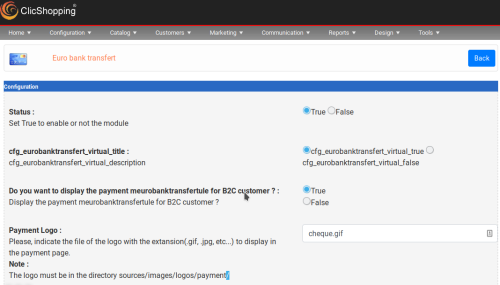
This apps will allow you to pour customer to make an euro transfert for you BIC SEPA SWIFT Iban Important Note : Copy the apps_payment_eurobank_transfert.json into ClicShopping/Work/Cache/Github licence : GPL 2 - MIT Install : http://monsite/myAdmin/index.php?A&Payment\EurobankTransfert Activate the module in Payment- 3 Downloads
- 0 Comments
-
Apps payment payplug
Free
This apps will allow you to add Payplug hosting Payment in your website - Hosting version - Simplicité : Sans contrat VAD - Conversion des ventes : Boostez vos ventes grâce à nos pages de paiement responsive mobile - An account on Payplug must be created Technical Prerequisites: None More information about Payplug : https://www.payplug.com Modules: - License GPL2 - MIT - Compatibility: >= version 3.0 - No core modification - Language French- 10 Downloads
- 0 Comments