Skip to content
View in the app

A better way to browse. Learn more.

Clicshopping AI, Free generative artificial intelligence e-commerce Open Source , Open Source Store Onlne

A full-screen app on your home screen with push notifications, badges and more.

To install this app on iOS and iPadOS
  1. Tap the Share icon in Safari
  2. Scroll the menu and tap Add to Home Screen.
  3. Tap Add in the top-right corner.
To install this app on Android
  1. Tap the 3-dot menu (⋮) in the top-right corner of the browser.
  2. Tap Add to Home screen or Install app.
  3. Confirm by tapping Install.
  • Search By Tags

    Search will match any tag entered
  • Search By Author

Content Type

Forums

  • News and Annoucement
    • Latest news for community
  • ClicShoppingV3
    • Documentation
    • Installation & Configuration & Operation
    • Community Developement
    • Best pratices / tip / trips and training
  • General
    • Optimization / Marketing
    • General discussions
    • Archives

Blogs

  • E-commerce General
  • ClicShopping

Product Groups

  • Ambassador
  • Partnership
  • Hosting plan

Categories

  • Apps
    • Apps Payment
    • Apps Configuration
    • Apps Shipping
    • Apps Catalog
    • Apps Communication
    • Apps Customers
    • Apps Marketing
    • Apps Orders
    • Apps Order Total
    • Apps Report
    • Apps Social Network
    • Apps Tools
    • Apps Web Service
  • Design
  • Template
    • modules_boxes
    • modules_products_info
    • modules_front_page
    • modules_footer
    • modules_header
    • modules_index_categories
    • modules_account_customers
    • modules_products_featured
    • modules_products_heart (favorites)
    • modules_blog
    • modules_blog_content
    • modules_checkout_confirmation
    • modules_checkout_payment
    • modules_checkout_shipping
    • modules_checkout_success
    • modules_tell_a_friend
    • modules_contact_us
    • modules_create_account
    • modules_create_account_pro
    • modules_advanced_search
    • modules_login
    • modules_products_listing
    • modules_products_new
    • modules_products_reviews
    • modules_products_search
    • modules_products_special
    • modules_shopping_cart
    • modules_sitemap
    • Autres modules
  • Hooks
    • Hooks Admin
    • Hooks Shop
  • Languages
  • Modules
    • Modules Export
    • Modules Imports
    • Modules Others
    • Modules Dashboard

Find results in

Find results that contain...

Date Created

  • Start

    End

Last Updated

  • Start

    End


Filter by number of...

  • Minimum number of comments

  • Minimum number of replies

  • Minimum number of reviews

  • Minimum number of views

Found 1 result

    • 7 downloads
    • Version 1.0.1
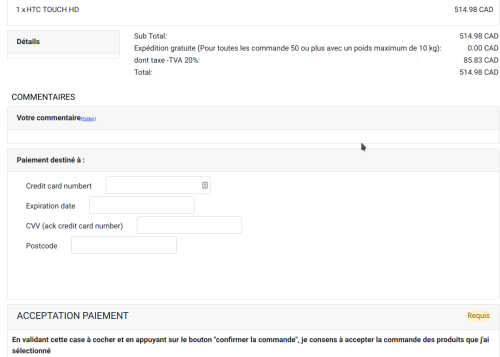
    The Square payment plugin module will allow you to connect your Square account to your online store. The payment gateway is operated by Square, Inc, which also offers POS card and chip readers to handle card-present transactions you can conduct from your phone or tablet in-store or mobile. https://squareup.com Licence : GPL2 - MIT French / English Install : http://monsite/myAdmin/index.php?A&Payment\Square Activate the module in Payment Copy the apps_payment_square.json into ClicShopping/Work/Cache/Github (manual installation) Important note : - You must have an account to square. - You site must have a valid ssl certificate - A help section is including inside the apps - The payment works only in CAD or USD currency - To use this apps, you must install composer on your local server or your server (apt-get install composer for linux). - The exec function must be authorised by your hoster else the auto installation will not work (for the libray but the apps will be installed). - To install manually the library Inside the shop directory (where there is composer.json file) composer require square/connect ==> installation composer update square/connect ==> update composer remove square/connect ==> remove Once this installaton is made, you can set the apps. All informations about the ClicShopping Community : https://www.clicshopping.org Software : https://github.com/ClicShopping Official trademark License info : https://www.clicshopping.org/forum/trademark/
    Free

Important Information

By using this site, you agree to our Terms of Use

Account

Navigation

Search

Search

Configure browser push notifications

Chrome (Android)
  1. Tap the lock icon next to the address bar.
  2. Tap Permissions → Notifications.
  3. Adjust your preference.
Chrome (Desktop)
  1. Click the padlock icon in the address bar.
  2. Select Site settings.
  3. Find Notifications and adjust your preference.