

ISAC
Members
-
Joined
-
Last visited
Everything posted by ISAC
-
Use Linux server Use Linux server PHP v7.3 As long as the installation files are assigned permission 777 and then at the end of 444, as mentioned in the installationAs long as the installation files are assigned permission 777 and then at the end of 444, as mentioned in the installation
-
I have followed all the installation steps but at the end when I try to enter the Admitter Panel it appears (HTTP ERROR 500). Anyone who can help me ?, I can give credentials of my site so you can help me .. Thank you
-
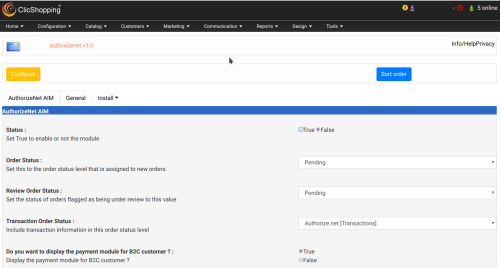 This apps will allow you to add Nexi Xpay hosting Payment in your website. Nexi Xpay is Italian payment provider You must have an account on Nexi Xpay : https://ecommerce.nexi.it Important Note : Copy the apps_payment_xpay.json into ClicShopping/Work/Cache/Github licence : GPL 2 - MIT French and English language Install : http://monsite/myAdmin/index.php?A&Payment\Xpay Activate the module in Payment Copy the apps_payment_xpay.json into ClicShopping/Work/Cache/Github (manual installation) All informations about the ClicShopping Community : https://www.clicshopping.org Software : https://github.com/ClicShopping trademark License info : https://www.clicshopping.org/forum/trademark/Free