
Search the Community
Showing results for tags 'boostrap'.
Found 2 results
-
Version 1.0.0
0 downloads
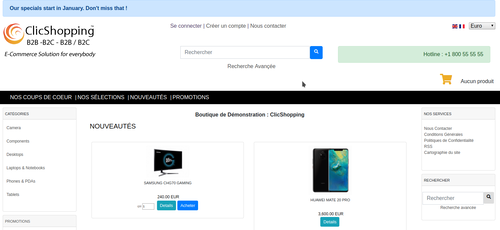
Allow to display a specific message in the shop for your customer. You can select a color to display the message This module contains The language files in English and French The css file in French and English The module Via the installation system administration ClicShopping Technical Prerequisites: None License : GPL 2 - MIT Modules: Compatibility: >= version 3.0 Multi languages Recommendation and documentation specific use : The module is installed in the Default template. If you have another template, you must copy the files inside your new template. Implementation: Install the module Activate the module Design / layout/ Header All informations about the ClicShopping Community : https://www.clicshopping.org Software : https://github.com/ClicShopping Official add on : https://github.com/ClicShoppingOfficialModulesV3 Community add on : https://github.com/ClicShoppingV3Community trademark License info : https://www.clicshopping.org/forum/trademark/ Github : https://github.com/ClicShoppingV3Community/modules_header_boostrap_messsage Github Download : https://github.com/ClicShoppingV3Community/modules_header_boostrap_messsage/archive/master.zipFree -
 Hello, This tutorial help you to include a modal boostrap with an external element inside the modal without the header and the footer 1st step : Modal boostrap now we suppose you want to include a modal inside a file. For example in edit.php Add this element : the modal boostrap where you want. (Sites/Admin/Pages/Home/template/edit.php) <script> $( document ).ready(function() { $("#myModal").on("show.bs.modal", function(e) { var link = $(e.relatedTarget); $(this).find(".modal-body").load(link.attr("href")); }); }); </script> <?php //******************************** // call pop up inside Amin/Pages //********************************* ?> <a href="<?php echo $CLICSHOPPING_Manager->link('PopUp'); ?>" data-remote="false" data-toggle="modal" data-target="#myModal" class="btn btn-default">Launch Modal</a> <!-- Default bootstrap modal example --> <div class="modal fade" id="myModal" tabindex="-1" role="dialog" aria-labelledby="myModalLabel" aria-hidden="true"> <div class="modal-dialog"> <div class="modal-content"> <div class="modal-header"> <button type="button" class="close" data-dismiss="modal" aria-label="Close"><span aria-hidden="true">×</span></button> <h4 class="modal-title" id="myModalLabel">Modal title</h4> </div> <div class="modal-body"> ... </div> <div class="modal-footer"> <button type="button" class="btn btn-default" data-dismiss="modal">Close</button> <button type="button" class="btn btn-primary">Save changes</button> </div> </div> </div> </div> 2nd step : PoPup Actions In Sites/Admin/Pages/Home/Actions Create a class called PopUp.php namespace ClicShopping\Apps\Communication\PageManager\Sites\Admin\Pages\Home\Actions; use ClicShopping\OM\Registry; use ClicShopping\OM\HTML; class PopUp extends \ClicShopping\OM\PagesActionsAbstract { public function execute() { $this->page->setUseSiteTemplate(false); // ad this function inside the files $this->page->setFile('popup.php'); } } 3 th step : Popup template In Sites/Admin/Pages/Home/templates Create a class called pop_up.php <?php use ClicShopping\OM\HTML; ?> <div class="row"> <div class="col-sm-12"> <div class="panel panel-primary"> <div class="panel-heading">Heading</div> <div class="panel-body"> Put Your stuff in here <?php echo HTML::inputField('example', 'toto'); ?> </div> </div> </div> </div> That's all ! After you can continue your code with save, insert, update ...